.CT7Ue_Yg_Z2bQzsG.webp)
Exporting your transaction history from Crypto.com
If you use Crypto.com and you need to export your transaction history so your colvence specialist can work out your crypto tax, this guide is for you. We cover the process step by step both from the mobile app and from the Exchange (the web platform).
Why you need your Crypto.com history
Crypto.com is based in Singapore. For Spanish tax purposes it counts as a foreign exchange.
If you hold more than €50,000 on foreign exchanges, you have to file Modelo 721.
To work out the capital gains and losses on your tax return you need:
- the date of every purchase and sale
- the amount of crypto
- the price at the time of the transaction
- the fees paid
Which files you need
For a complete tax return you will need to export the following CSV file from the Crypto.com App:
- Crypto transactions file — the complete crypto transaction history from the mobile app
Note: this integration is for the Crypto.com App (the mobile application). If you use the exchange (CEX), you need the “Crypto.com Exchange” integration instead.
CSV export from the App
Step 1: switch the language to English
Open Crypto.com and switch the language to English before exporting anything. This matters, because it avoids errors in the file format.
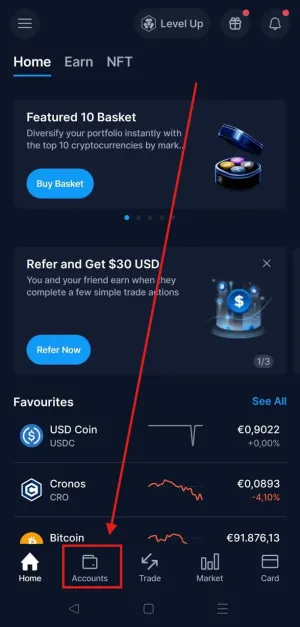
Step 2: open the Accounts section
Open your Crypto.com app and tap “Accounts” at the bottom of the screen.
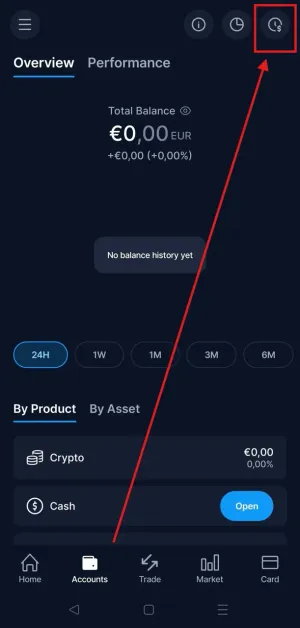
Step 3: open your transaction history
Tap the clock icon (transaction history) in the top right-hand corner.
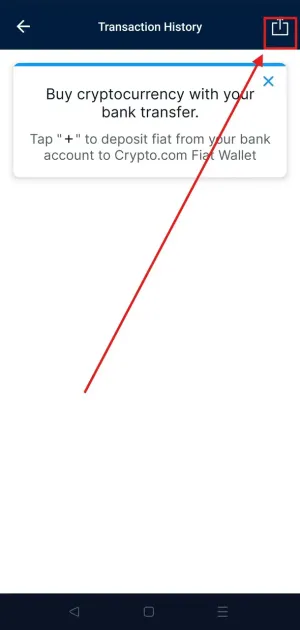
Step 4: export the CSV file
Tap the export icon in the top right-hand corner.
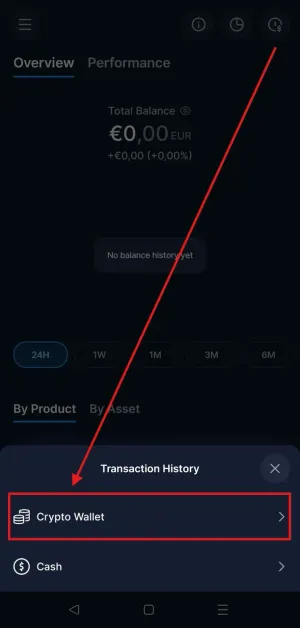
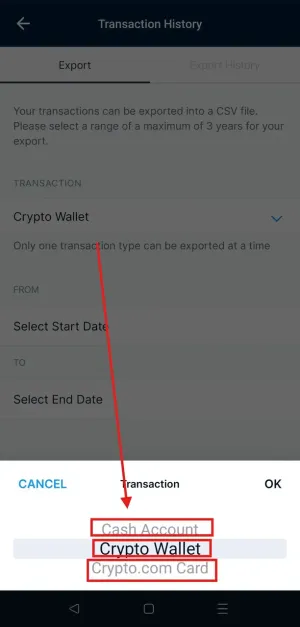
Step 5: select Crypto Wallet
In the pop-up window, choose “Crypto Wallet”.
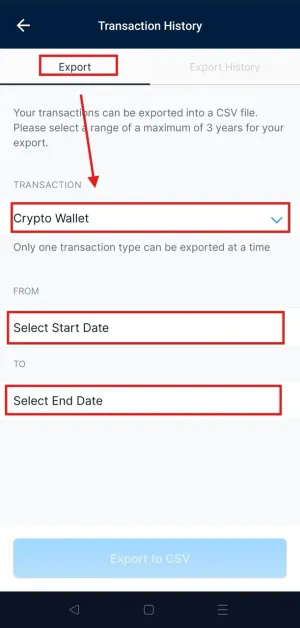
Step 6: set the dates and download
- Pick a start and end date (three years at most per export)
- Koinly needs your complete history, so if you have been trading for longer, you will have to run several exports
- Tap “Export to CSV”
- Tap “Download” once the file has been generated
Sending in your documents
Gather every exported CSV file and send them to your assigned colvence specialist for tax processing.
Important: do not open or modify the CSV files before sending them to us. Opening them in Excel can alter the date or number format.
CSV export from the Crypto.com Exchange
This section applies only to the web platform (crypto.com/exchange). If you usually trade from the Crypto.com mobile app, use the App guide above instead, as the process is different.
Before you start
You must switch your account language to English in Settings. That ensures our tax software reads the file format correctly.
Which files do we need?
There are two options. Please choose only one of them. If you send us the files from both options for the same dates, the data will be duplicated in the system.
Option 1 is the quicker one, but if your account has been open for a few years it may not be available for your oldest transactions. In that case, use Option 2.
Option 1: the transactions file (“Transactions CSV”) — recommended
-
Go to crypto.com/exchange and sign in to your account. (Remember to switch the language to English in your Settings.)
-
Go to your main panel (Dashboard).
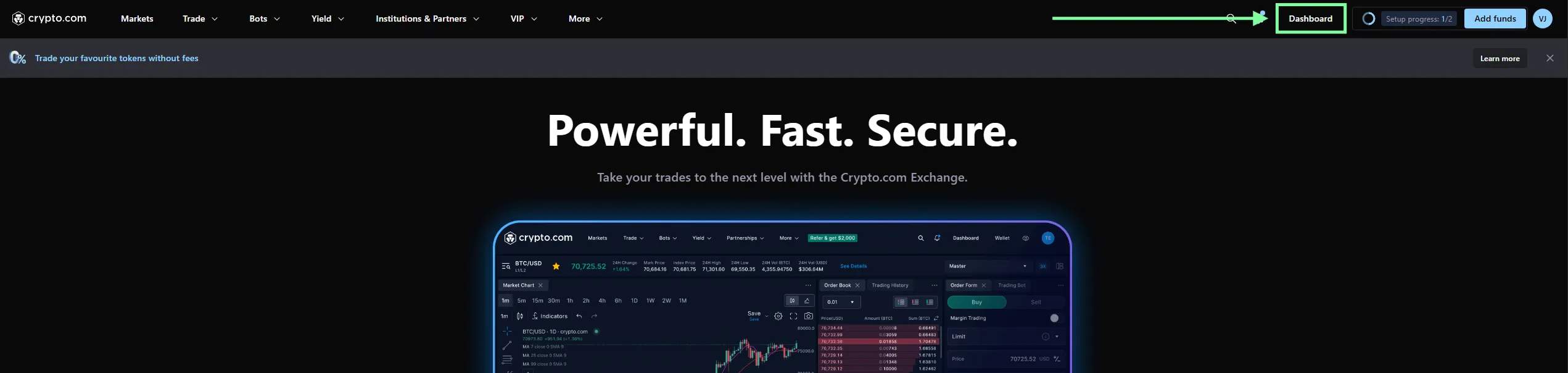
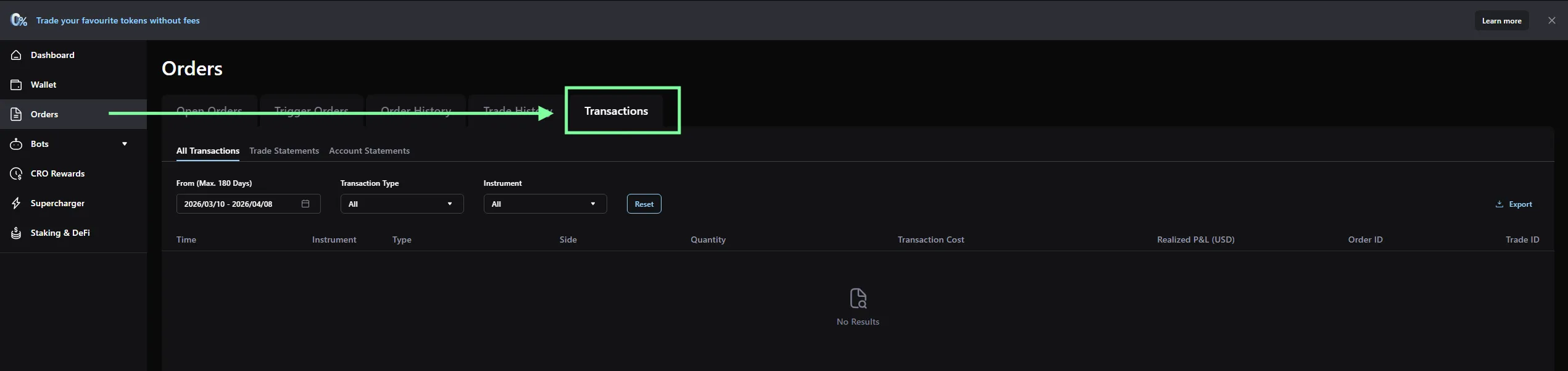
- In the left-hand menu, click Orders.
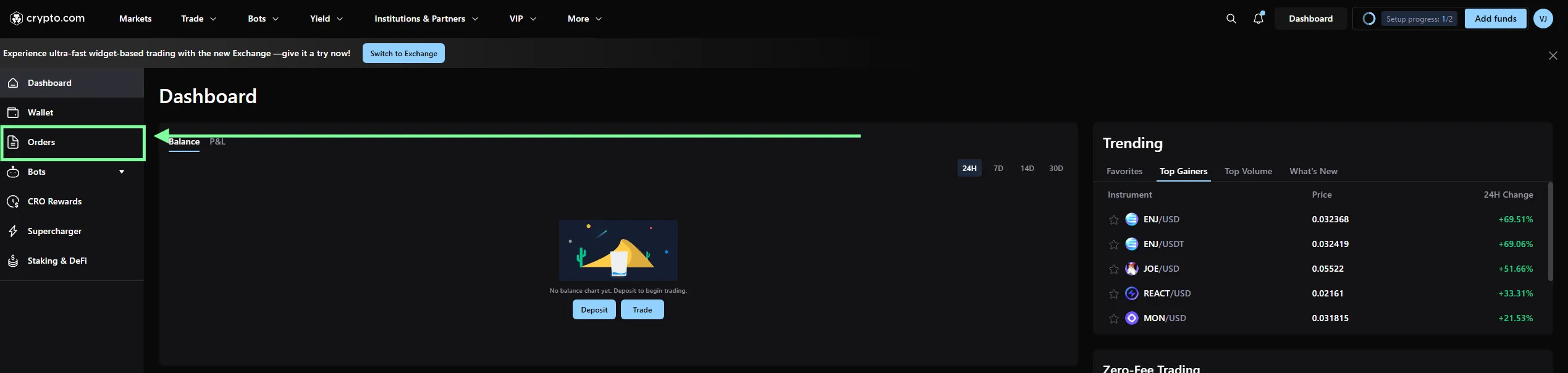
-
Select the Transactions tab and set the date range.
⚠️ Important: the system only allows a maximum of 180 days per export. To cover your entire tax history you will have to repeat this process several times (splitting each year into two halves, for instance) until the whole period is covered.
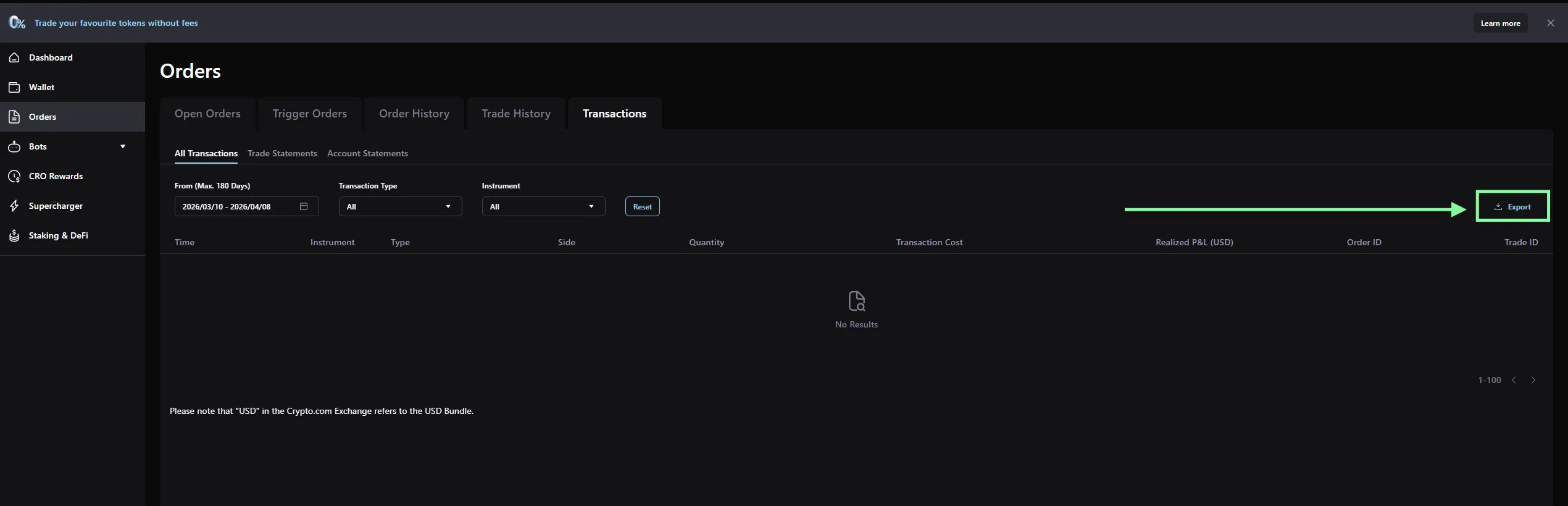
- Click the Export button in the top right-hand corner.
- In the pop-up window, click Export to CSV.
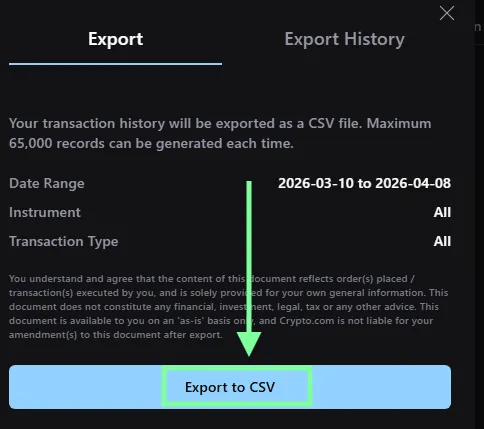
- Wait for the file to be generated and download it to your computer.
Limits worth knowing
| Limit | Detail |
|---|---|
| Crypto.com App only | This guide covers the mobile app. For the exchange (CEX), use the “Crypto.com Exchange” integration |
| Maximum range per export | 3 years |
| NFTs | ❌ Not included in Crypto.com’s files. They have to be added by hand |
| Crypto basket | ❌ Crypto basket transactions have to be added by hand |
| Fiat balance | ⚠️ Fiat/card files are no longer supported, so the fiat balance (USD, GBP, EUR and so on) may be wrong. This does not affect the calculation of crypto gains (fiat is neutral) |
Summary
| File | Source | Notes |
|---|---|---|
| Crypto transactions file | Crypto.com App → Accounts → History → Export → Crypto Wallet | Three years at most per export |
Need help with your Crypto.com history?
At colvence we download and process your Crypto.com history. We work out every gain and loss using the FIFO method and prepare your tax return.
Get in touch and we will take it from there.

Víctor Lázaro
Tax adviser, colvence.com