
Guide to exporting your Trade Republic transaction history
If you use Trade Republic and need to export your transaction history to hand over to your colvence specialist and work out your tax, this guide is for you. We walk you through downloading the CSV straight from the app, step by step.
Downloading the CSV from the app
Note: Trade Republic added native CSV export in April 2026. If you are looking at older information, you may come across out-of-date guides claiming it cannot be done. It can now.
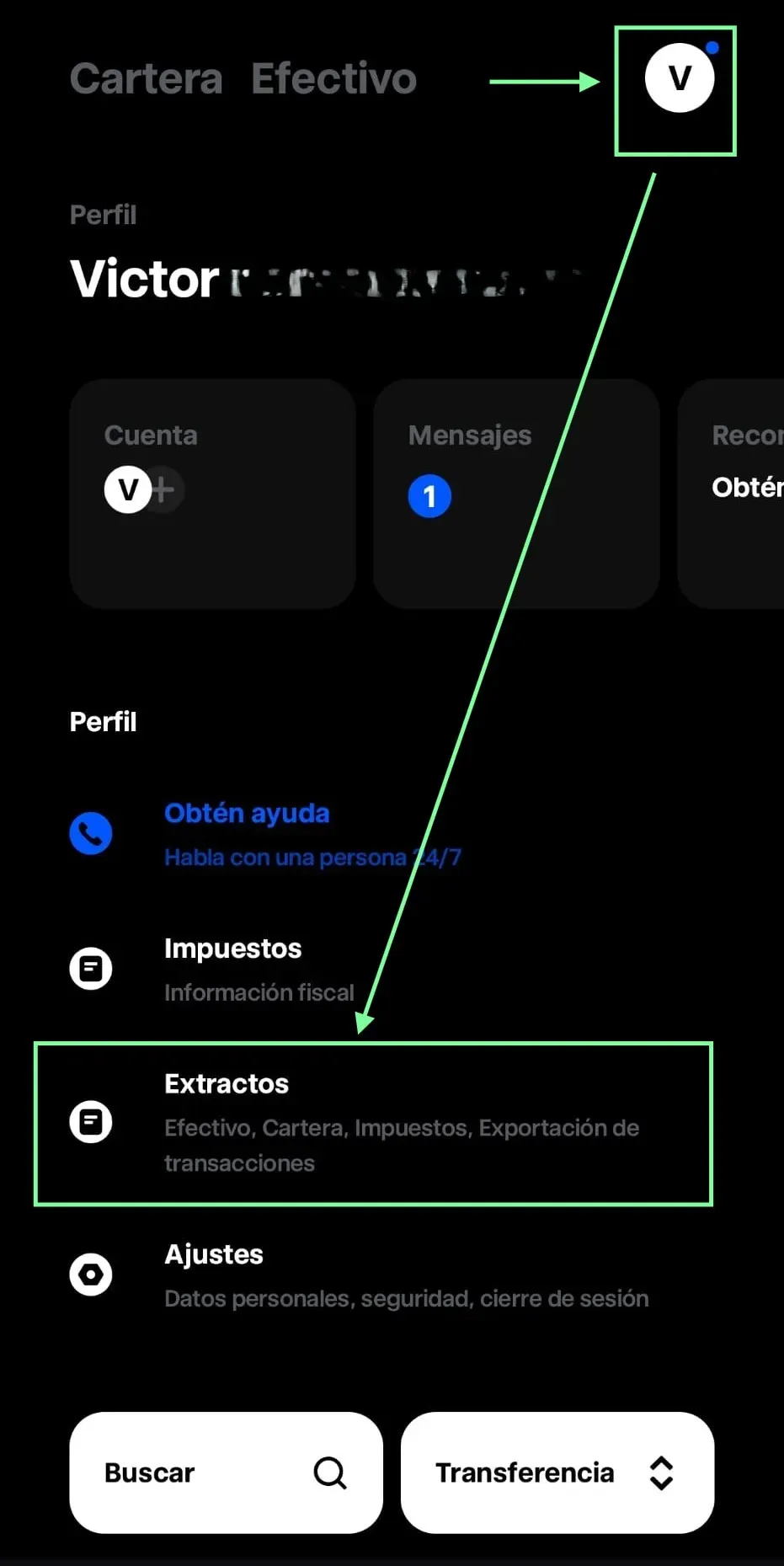
Step 1: open your profile
- Open the Trade Republic app on your phone
- Tap the profile icon (avatar) in the top right-hand corner
Step 2: go to Statements
- Inside your profile, look for the “Statements” section
- Tap “Statements”
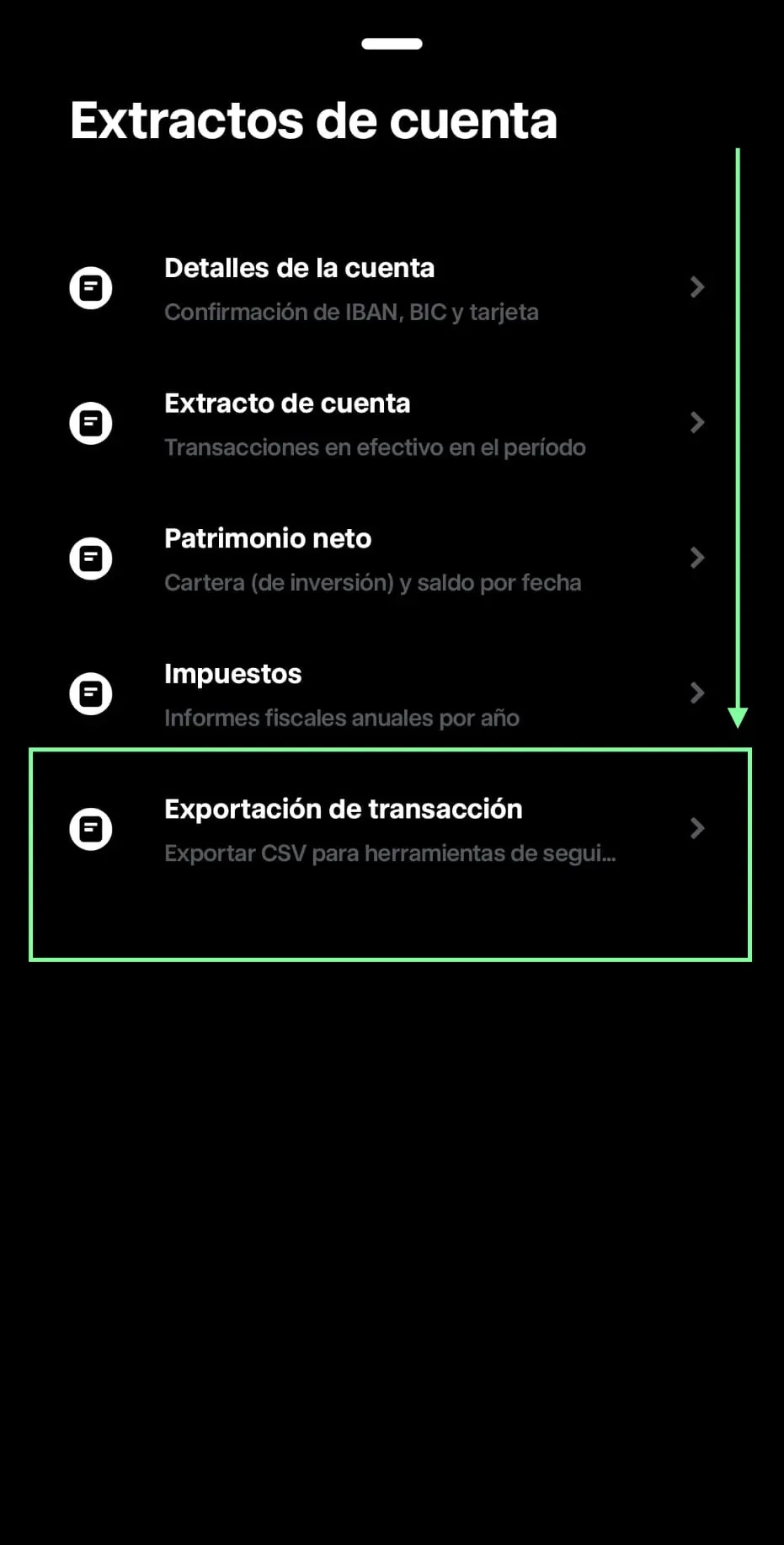
Step 3: select Transaction export
- You will see the options: Account details, Account statement, Net worth, Tax and Transaction export
- Tap “Transaction export”, the last option on the list
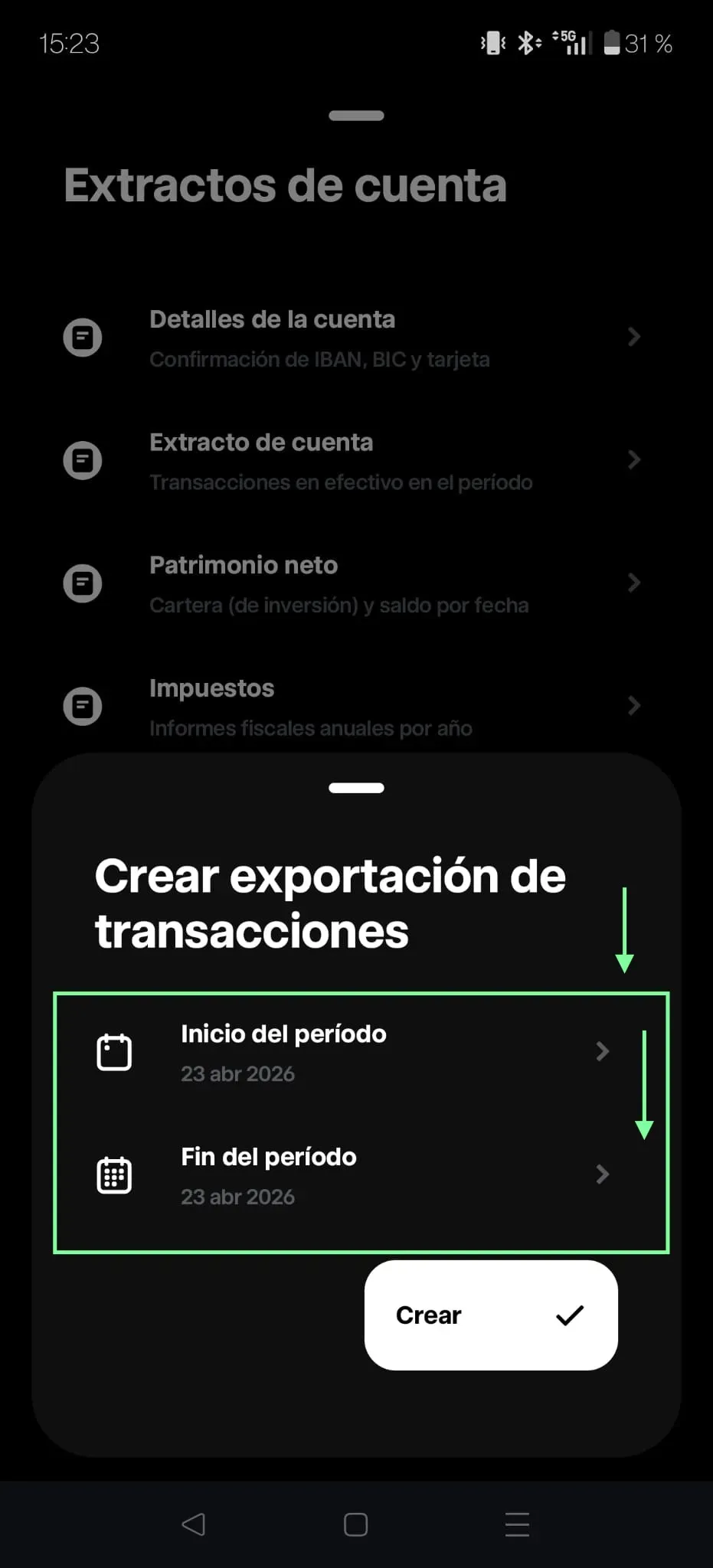
Step 4: set the period and download
- Under “Period start”, pick the date you want to export from (ideally the day you opened the account)
- Under “Period end”, pick the last date of the tax year you need (for example, 31 December of the relevant year)
- Tap “Create”
- A CSV file will be generated that you can share or save
Tip: for your tax return, export from your very first transaction through to the last day of the most recent year you need.
What does the CSV file contain?
The Trade Republic CSV includes every one of your transactions:
| Transaction type | Description |
|---|---|
| Buys and sells | Purchases and sales of shares, ETFs and crypto |
| Dividends | Dividend payments and corrections |
| Corporate actions | Splits, spin-offs, stock dividends |
| Deposits and withdrawals | Cash paid in and taken out |
| Card payments | Transactions made with the Trade Republic card |
| Staking / Savings | Interest on the remunerated account and rewards |
| Transfers | Incoming and outgoing securities transfers |
The CSV includes fields such as the date, transaction type, the asset’s ISIN, quantity, amount, currency and a unique identifier per transaction.
Important: do not open or edit the CSV file before sending it to us. Opening it in Excel can change the date or number format and make it harder to process.
Frequently asked questions
How much history can I export?
All of it. Trade Republic lets you export your complete history from the day you opened the account, as long as you pick the right dates.
Can I export from the web version?
CSV export is currently available from the mobile app. If you only use the web version, download the app to run the export.
Do crypto transactions appear in the CSV?
Yes. Trade Republic offers crypto trading and every transaction (buys, sells, staking) appears in the same CSV alongside those for shares and ETFs.
Do I also need the annual tax report?
Trade Republic’s annual tax report (usually available from May) is a separate PDF document. For the detailed FIFO calculation we need the CSV with all transactions, not the PDF.
What if my CSV includes card transactions?
Transactions made with the Trade Republic card (payments, cashback) also appear in the CSV. Do not worry: we filter them out during processing and only calculate the relevant taxable events.
Summary
| Step | Action |
|---|---|
| 1 | Open the app and tap your profile icon |
| 2 | Tap Statements |
| 3 | Select Transaction export |
| 4 | Set the start and end dates |
| 5 | Tap Create, download it and send it to us unopened |
Need help with your Trade Republic history?
At colvence we download and process your Trade Republic history. We calculate every gain and loss using the FIFO method and prepare your tax return.
Message us on WhatsApp and we will help you.

Victor Lazaro
Tax adviser, colvence.com