Do you trade on Bit2Me and need to prepare your Spanish tax return? For the colvence team to produce an accurate gains and losses report, the first step is to get your complete transaction history. This guide shows you how to do it in under 5 minutes.
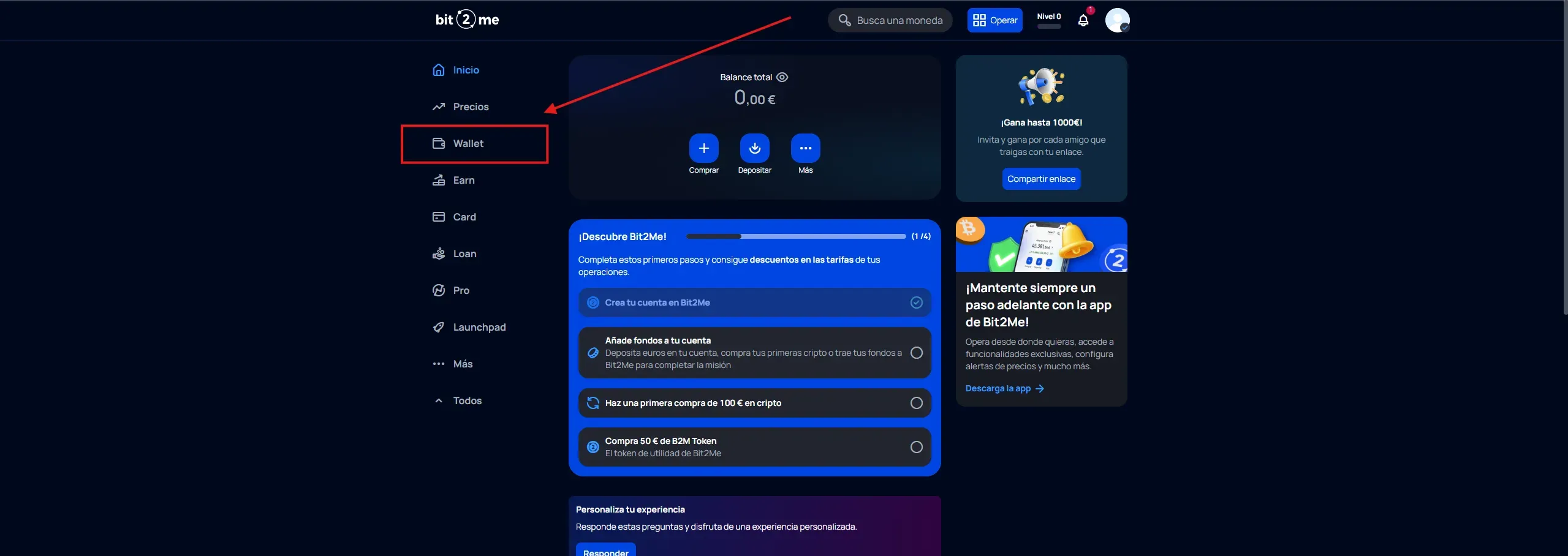
1. Sign in and go to Wallet
Start with the web version of Bit2Me.
- Log in to https://bit2me.com/es with your credentials.
- In the left sidebar, click “Wallet” (the wallet icon).
2. Open the activity history
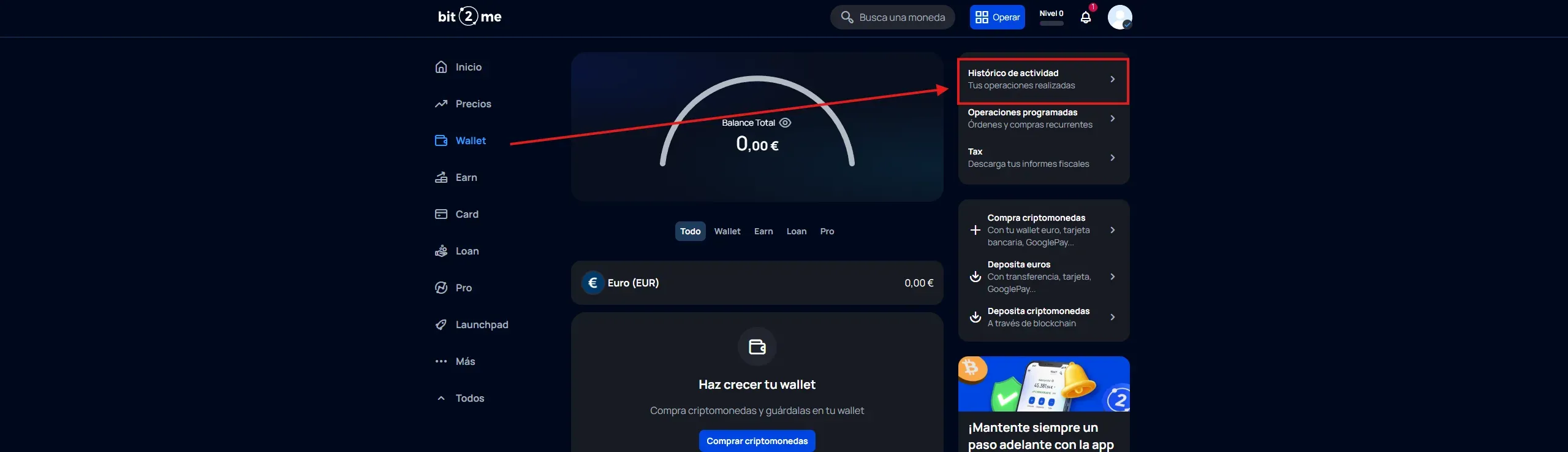
Once inside Wallet, you need to reach your transaction history.
- At the top right, look for the “Histórico de actividad” (activity history) section.
- You will see the subtitle “Tus operaciones realizadas”. Click it.
3. Download your activity as XLSX
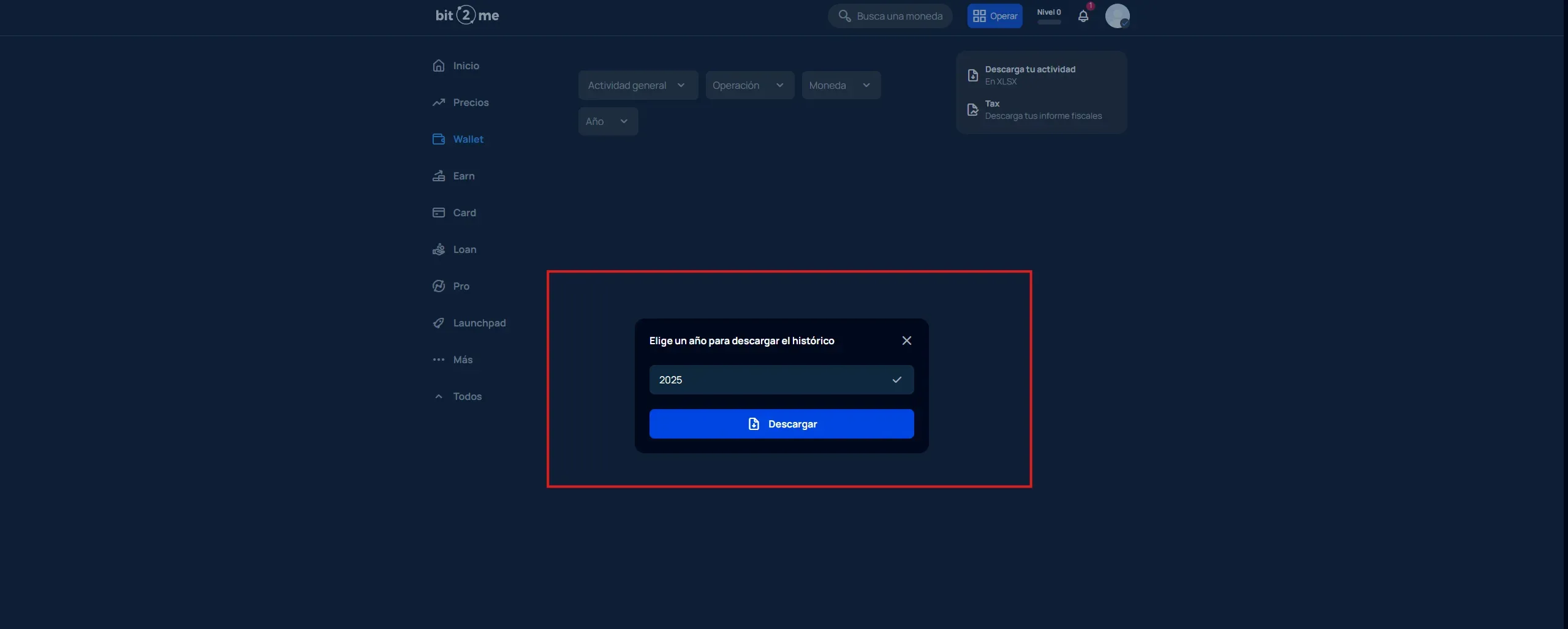
Inside the activity history you will find the export option.
- In the right sidebar, look for “Descarga tu actividad” (download your activity).
- You will see the subtitle “En XLSX”. Click it.

4. Pick the year and download
A pop-up will open so you can choose the period.
- Select the year of the history you want to download.
- Click the “Descargar” (download) button.
- Important: repeat this process for every year you traded on Bit2Me.
5. Upload the files to your user area
Once you have all the files downloaded (one per tax year), go to your colvence user area and upload them to the platform. Do not modify the files, upload them exactly as they are so the data stays intact.
⚠️ Important notes
- Export year by year to keep the files tidy.
- The export format is XLSX (Excel).
- If you have been trading for several years, make sure you download the history for all of them.
- Save the files under descriptive names (e.g.
bit2me_2023.xlsx,bit2me_2024.xlsx).
Got your file ready? Upload your XLSX here and let the colvence specialists work out your tax for you.

Victor Lazaro
Tax adviser, colvence.com