How to export your Bitget transaction history
If you use Bitget and need to export your transaction history to work out your crypto tax in Spain, this guide explains exactly what to download and how.
Important: we need both: the CSV files and the API connection. They are not alternatives — they complement each other. The CSV gives us the complete history and the API lets us verify balances in real time.
Why you need your Bitget history
Bitget is an exchange based in the Seychelles. For Spanish tax purposes it counts as a foreign exchange.
If you hold more than €50,000 on foreign exchanges, you have to file the Modelo 721.
To calculate your gains and losses you need:
- the date of every transaction
- the quantity of crypto
- the price at the moment of the transaction
- the fees paid
Step 1: log in
- Open your browser and go to bitget.com
- Click Log in at the top right
- Enter your email address and password
- Complete the two-step verification (email, SMS or authenticator)
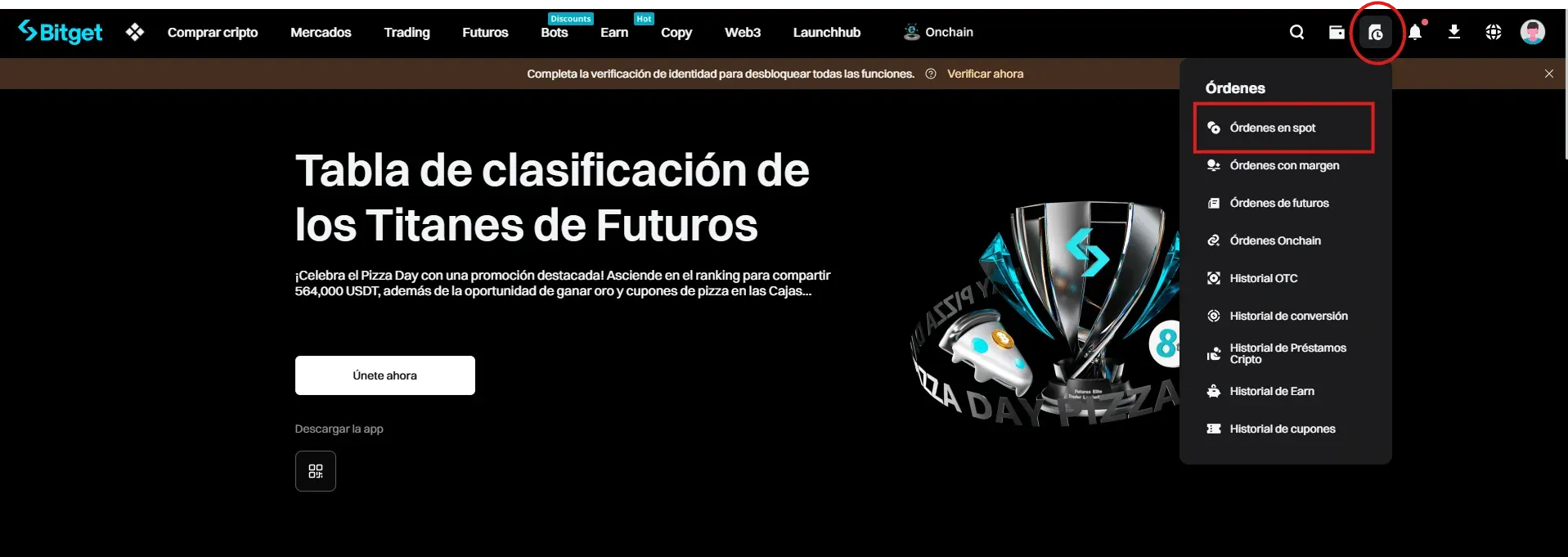
Step 2: go to Data export
Bitget has one central section that exports every history type at once, so you do not have to go through them section by section.
- In the left sidebar, scroll down until you find Data export
- Click the arrow to expand it
- Choose Order history
Step 3: set up the export
Once in Data export → Order history, choose the All time tab (not “Within 6 months”).
Export settings
- Accounts: select your account (the main one appears by default)
- Type: click the dropdown and select every type available:
- Spot orders / Order history
- Futures orders / Closed PnL
- Margin orders
- Onchain orders
- OTC history
- Convert history
- Earn history
- And every other one on the list (27+ types)
- Time: enter the date range you want to export. The All time tab allows up to 24 months per export
- Format: choose CSV
- Click Generate
If you have been on Bitget for more than 2 years, repeat the process in 24-month blocks until you have covered the whole history from the day your account was opened.
The export takes between 1 and 3 days to process. When it is ready you will get a notification and the download link will stay available for 7 days. Download it as soon as it arrives.
Step 4: download the files
- When you get the notification that the export is ready, go back to Data export → Order history
- In the Export history section, click Refresh to update the status
- Download the file by clicking the download link
- Repeat steps 3 and 4 for each 6-month block until the whole history is covered
Important: do not open or modify the CSV files before sending them to us. Opening them in Excel can change the date or number formatting.
Limits to bear in mind
| Limit | Detail |
|---|---|
| Maximum range per export | 24 months (All time tab) |
| Maximum records per export | 10,000 |
| Exports per month | 10 at most |
| Download link validity | 7 days from generation |
| Processing time | 1 to 3 days |
If you have more than 10,000 transactions within a 24-month period, split that block into shorter periods.
Method 2: API connection
For a more direct and accurate connection, you can link your account by API.
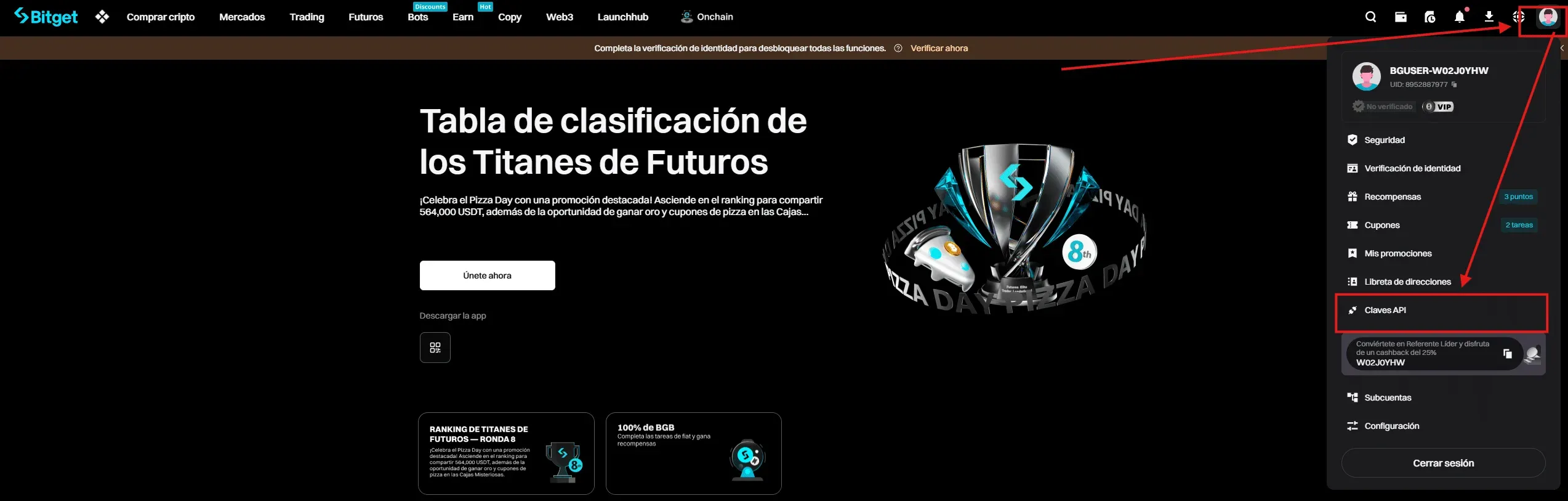
Step 1: go to API keys
- Log in to bitget.com
- Click your profile icon at the top right
- Choose “API keys” in the dropdown
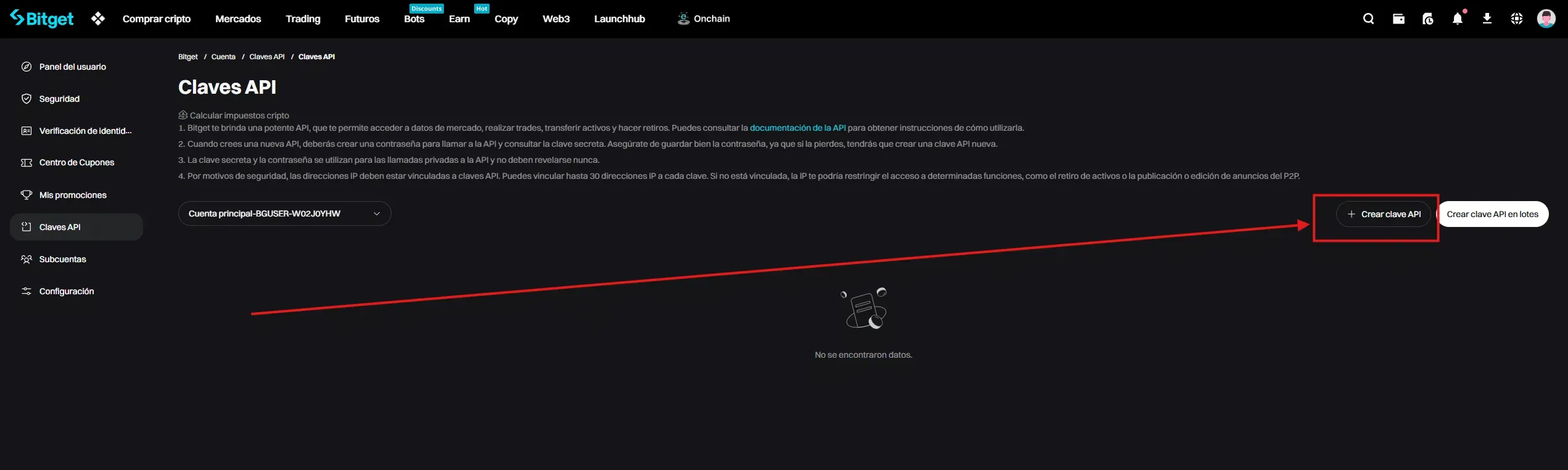
Step 2: create the API key
- On the API keys page, click ”+ Create API key”
Step 3: settings
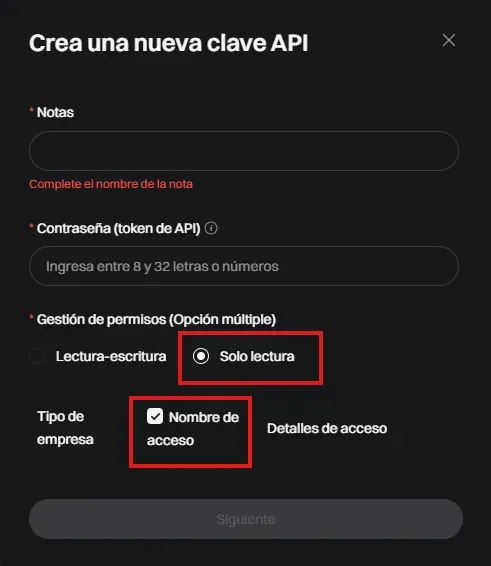
- Fill in the Notes field with a descriptive name (e.g. “colvence2026”)
- Enter a passphrase (API token) — between 8 and 32 alphanumeric characters
- Under Permissions, choose “Read-only”
- Tick the “Nombre de acceso” (access name) box
- Click “Next” and complete the security verification
Step 4: copy the keys
Once created, copy the following securely:
- API Key (Access APIKey)
- Secret Key (API Secret)
Send these keys together with the API token (the passphrase you created in the previous step) to your colvence specialist.
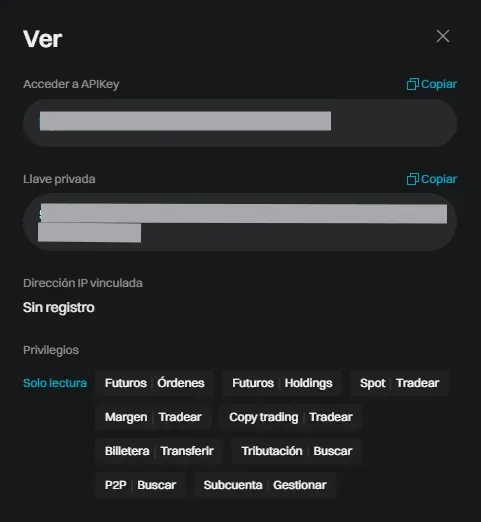
Security: the “Read-only” permission allows account and order information to be viewed, but it cannot trade or withdraw funds.
Sub-account balance screenshots
Important: Bitget splits your funds across several sub-accounts. The API only reports the balances of the Spot account, so we need screenshots of the rest to get the full picture of your holdings.
Which screenshots do we need?
Send a screenshot of the balance of every sub-account you hold funds in:
- Spot
- Futures (USDT-M, Coin-M and USDC-M)
- Cross margin
- Isolated margin
- Simple Earn
- Dual Investments
- Shark Fin
- Onchain
- Any other one holding funds (Copy Trading, Launchpad, etc.)
How to get them
- Log in to bitget.com
- Click Assets in the sidebar
- Go through each sub-account and take a screenshot showing the amounts, the coins and the date clearly
- Send the screenshots along with the CSV files and the API keys
Without these screenshots we cannot correctly calculate your holdings for the Modelo 721 or reflect the balances of the sub-accounts other than Spot.
Need help with your Bitget history?
At colvence we download and process your Bitget history. We calculate every gain and loss using the FIFO method and prepare your return.
Get in touch and we will take it from there.

Víctor Lázaro
Tax adviser, colvence.com