To declare your Revolut crypto you need the complete transaction history in CSV format with English column names. Here is how to get it, step by step.
Why you need your Revolut history
To calculate the gains and losses for your return you need:
- the date of every purchase and sale
- the quantity of crypto
- the price in euros
- the fees paid
Important: Revolut Crypto is operated by Revolut Digital Assets Europe Ltd, an entity registered in Cyprus. That means it is a foreign exchange and it does trigger Modelo 721 if your holdings on foreign platforms exceed €50,000.
First: switch the language to English (IMPORTANT)
Before exporting your history, switching the app to English matters. It ensures the file comes out with English column names, which is what allows it to be processed correctly.
Step 1: open your profile
- Open the Revolut app
- Tap your profile icon (top left corner)
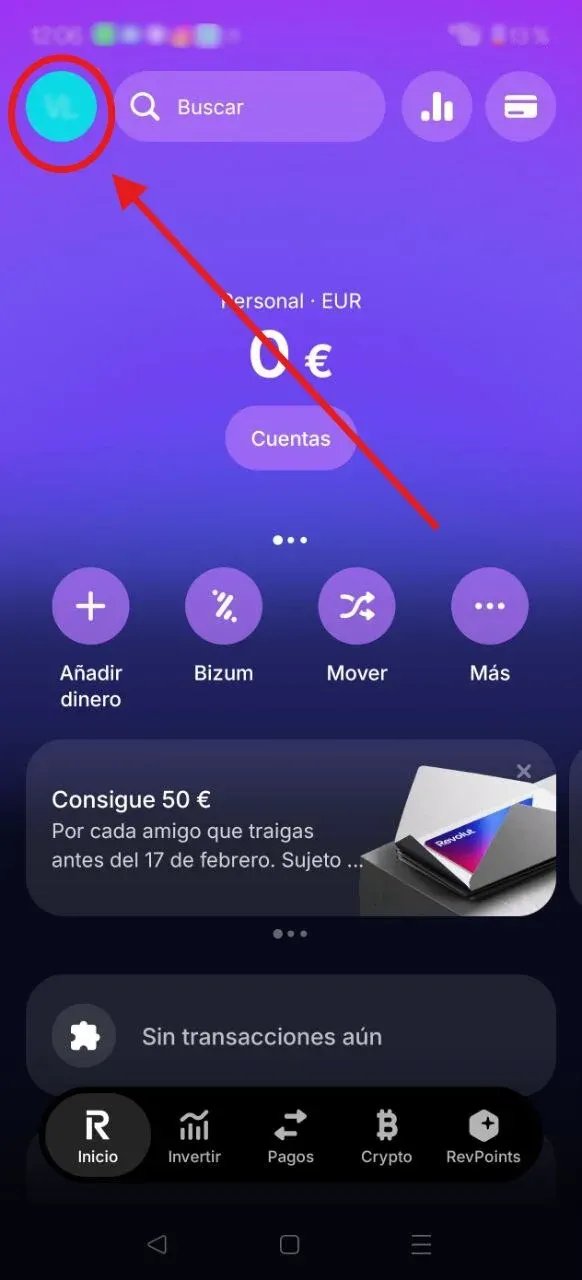
Step 2: choose Appearance
- In the profile menu, find and tap “Appearance”
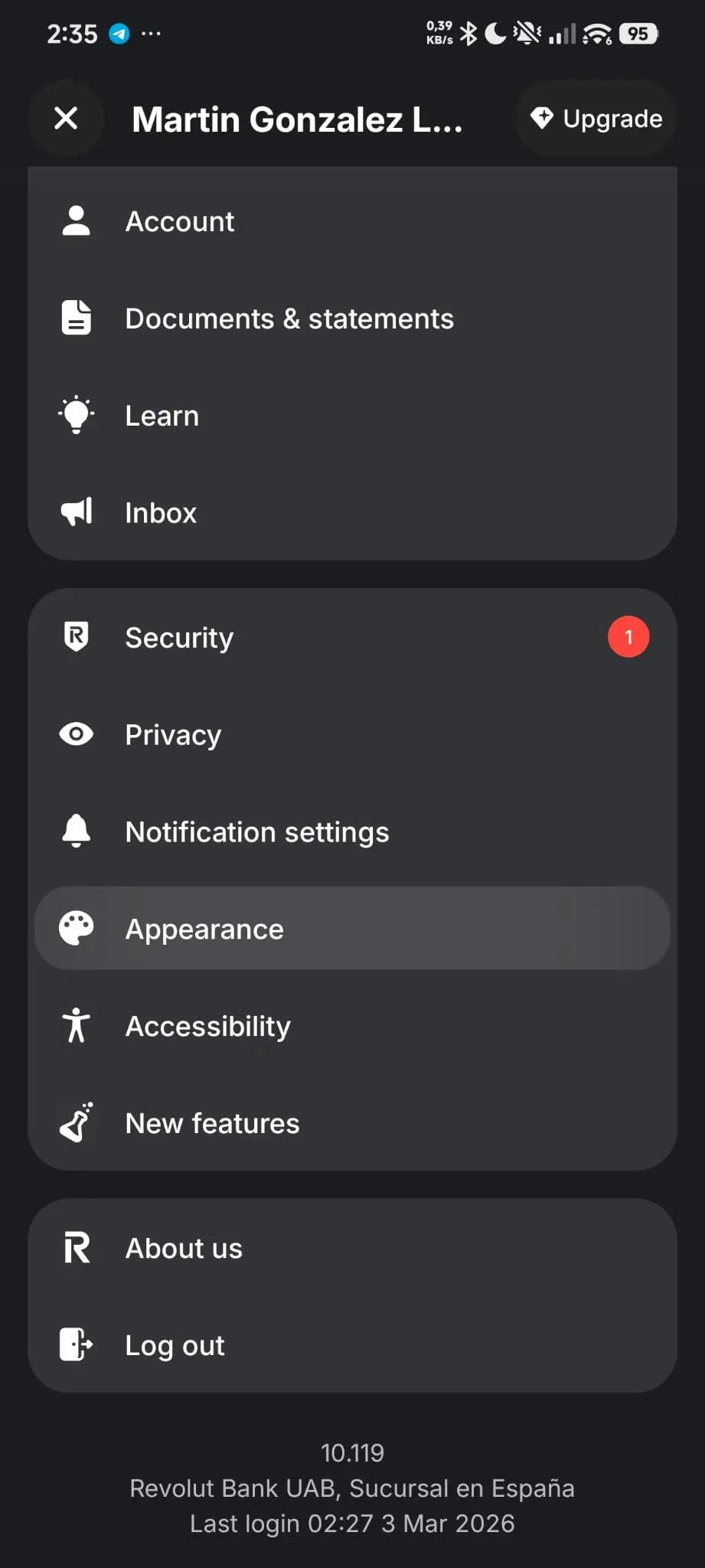
Step 3: open Language
- Inside Appearance, tap “Language”
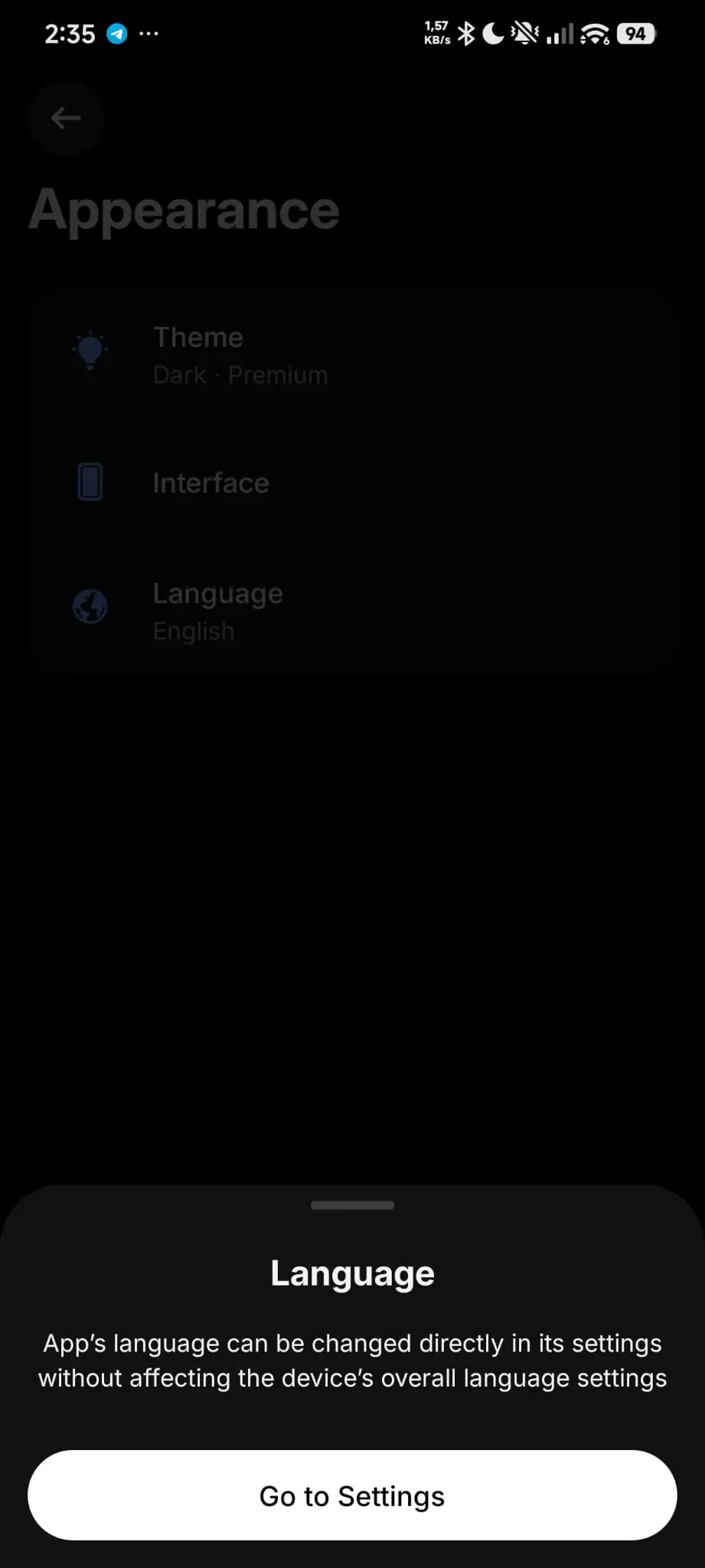
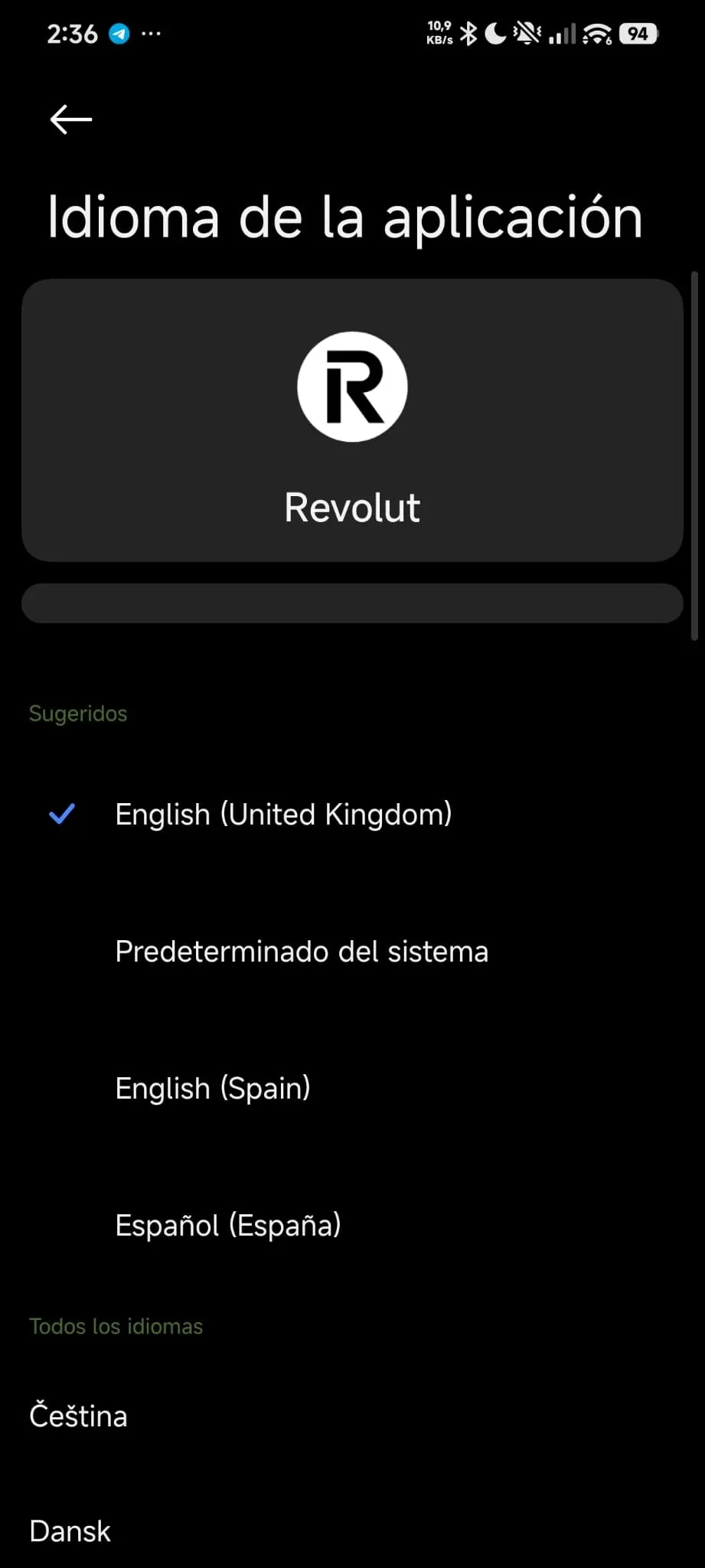
Step 4: select English (United Kingdom)
- In the language list, pick “English (United Kingdom)”
- Important: only “English (United Kingdom)” works, NOT other variants such as “English (Spain)”
- The app switches to English immediately
Step 5: clear the app cache (Android)
Android lets you clear the cache without removing your login details or settings.
- Open your phone’s Settings
- Go to Apps (or “Manage apps”)
- Find and select Revolut in the list
- Tap Storage (or “Storage and cache”)
- Press the Clear cache button
Note: do not confuse this with “Clear data/storage”, which signs you out and forces you to set up access again.
Exporting the history from the mobile app
Now that the app is in English, go ahead and export.
Step 6: return to your profile
- Leave the Settings menu
- Go back to the main screen
- Tap the profile icon again (top left corner)
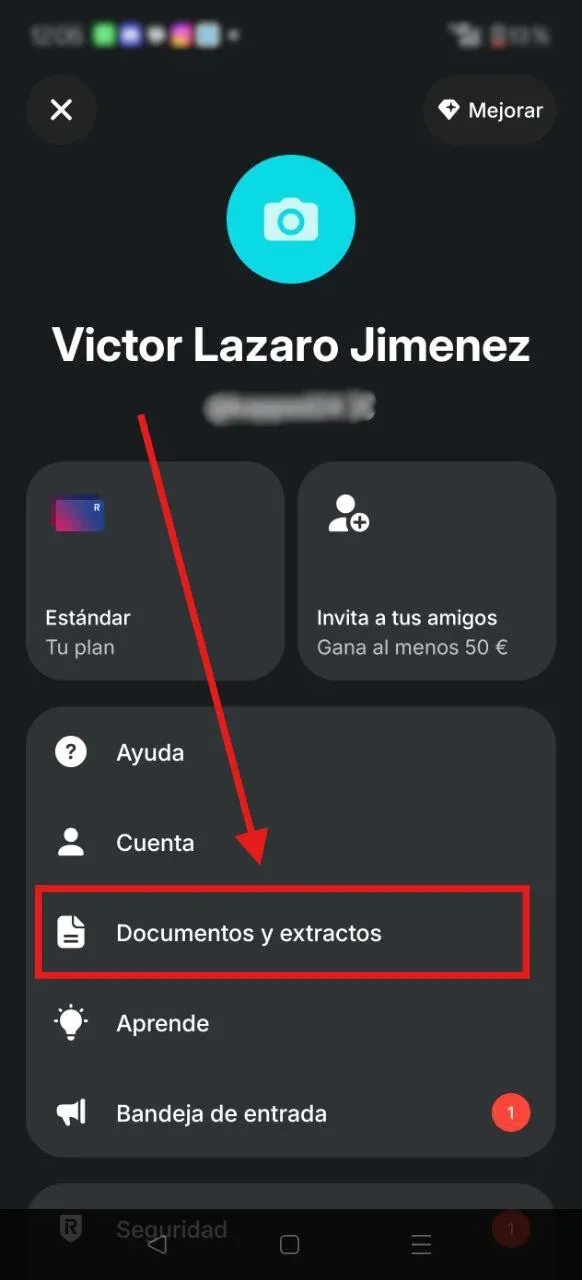
Step 7: open Documents and statements
- In the profile menu, find and tap “Documents and statements”
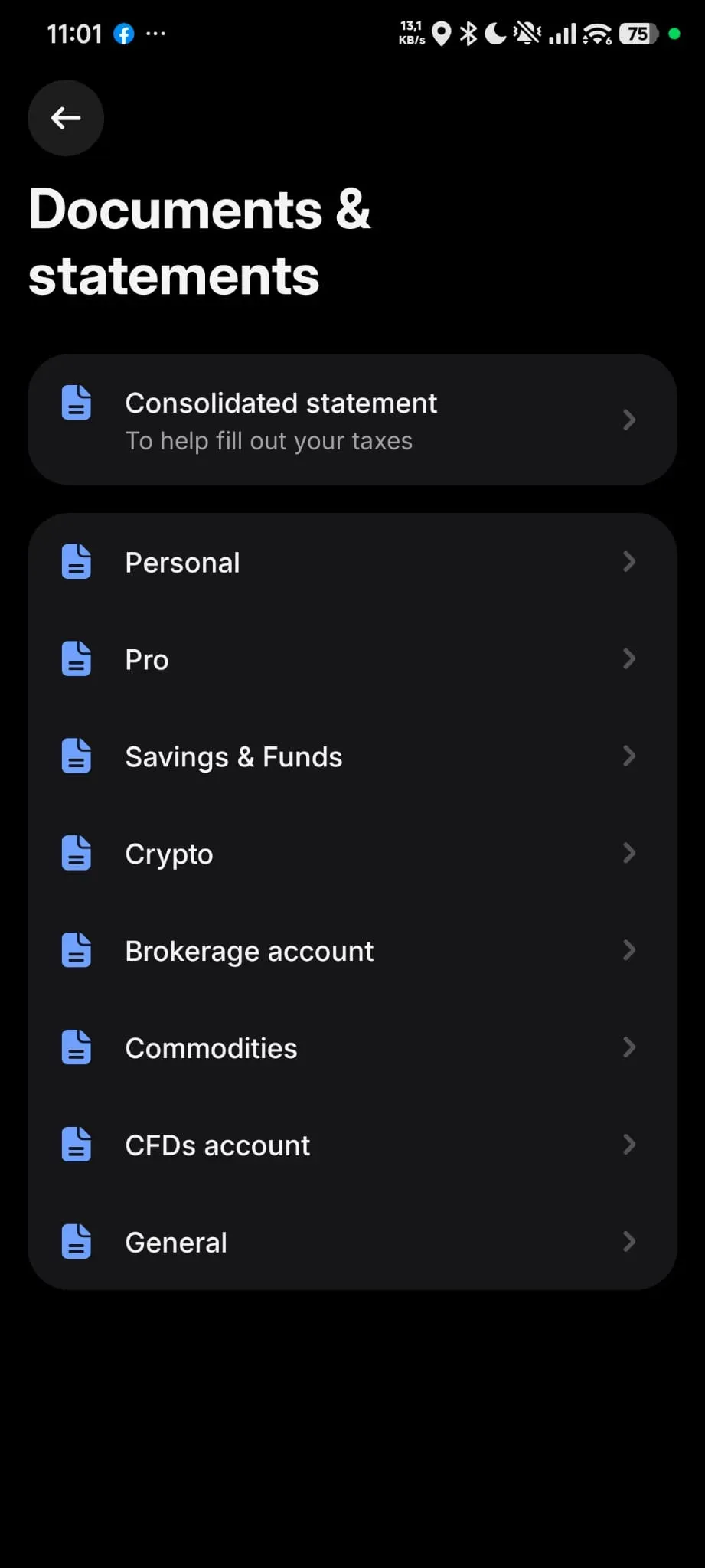
Step 8: choose Crypto
- You will see several options (Consolidated statement, Personal, Crypto, General)
- Tap “Crypto”
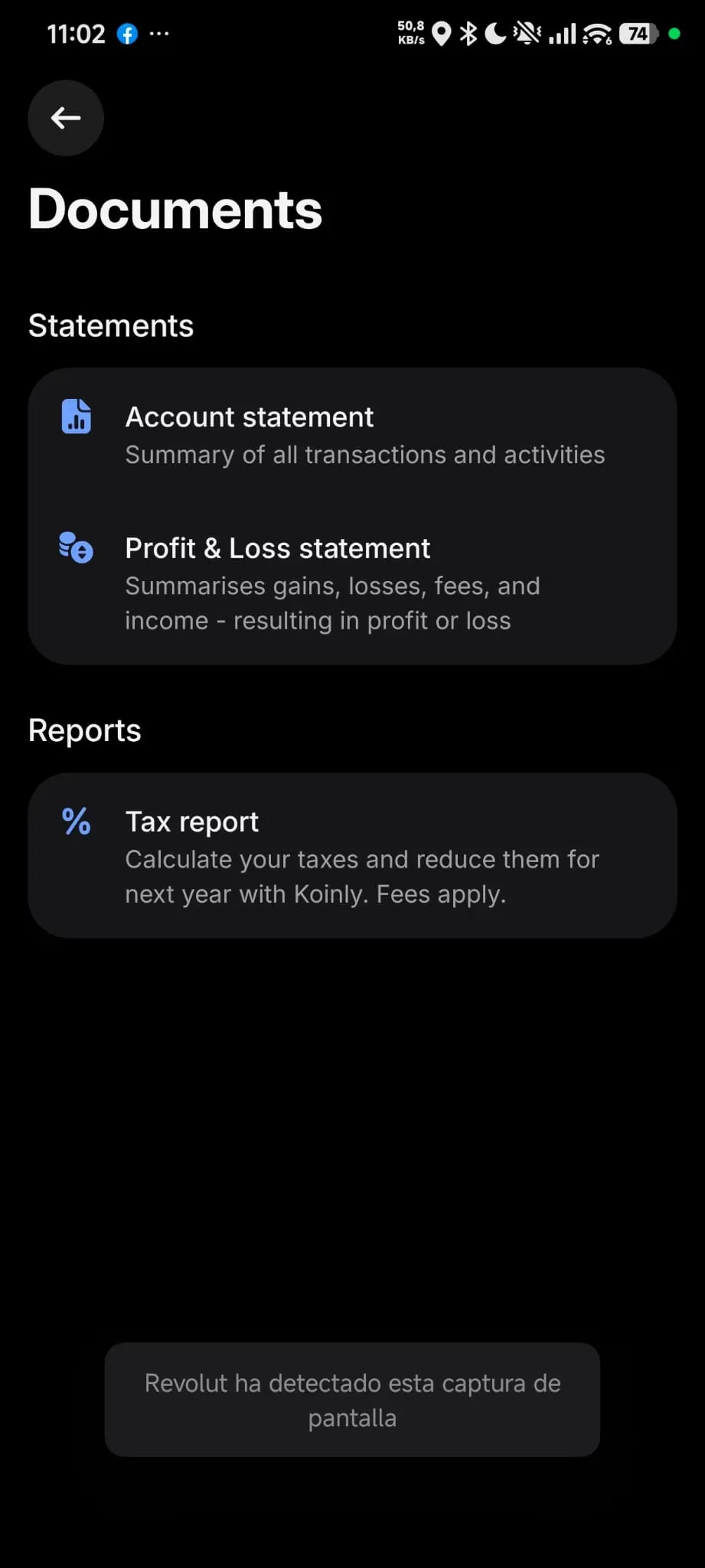
Step 9: open Account Statement
- Inside Crypto, under the “Statements” section
- Tap “Account Statement”
Step 10: set Excel and Lifetime
- Choose the Excel format (not PDF)
- Under Period, choose “Lifetime” or “All time” so you get your entire history
- Tap “Generate” to download
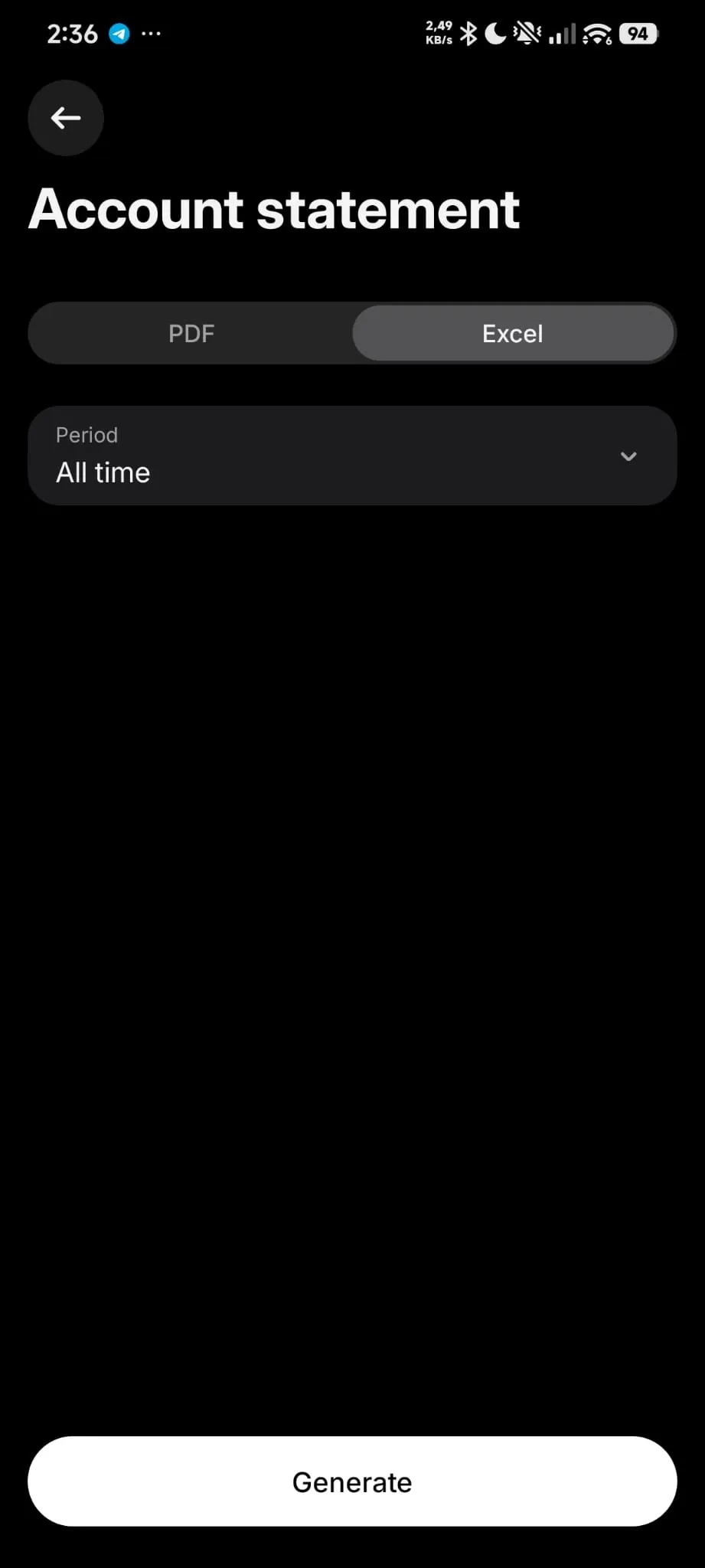
VERY IMPORTANT: once the file has downloaded, do not open it with any application other than Google Sheets. Opening it in desktop Excel or another app can change the formatting, and it will not process correctly.
Converting the Excel file to CSV
The downloaded file is an Excel file (.xlsx), and it needs to become a CSV. Here is how to do that with Google Sheets:
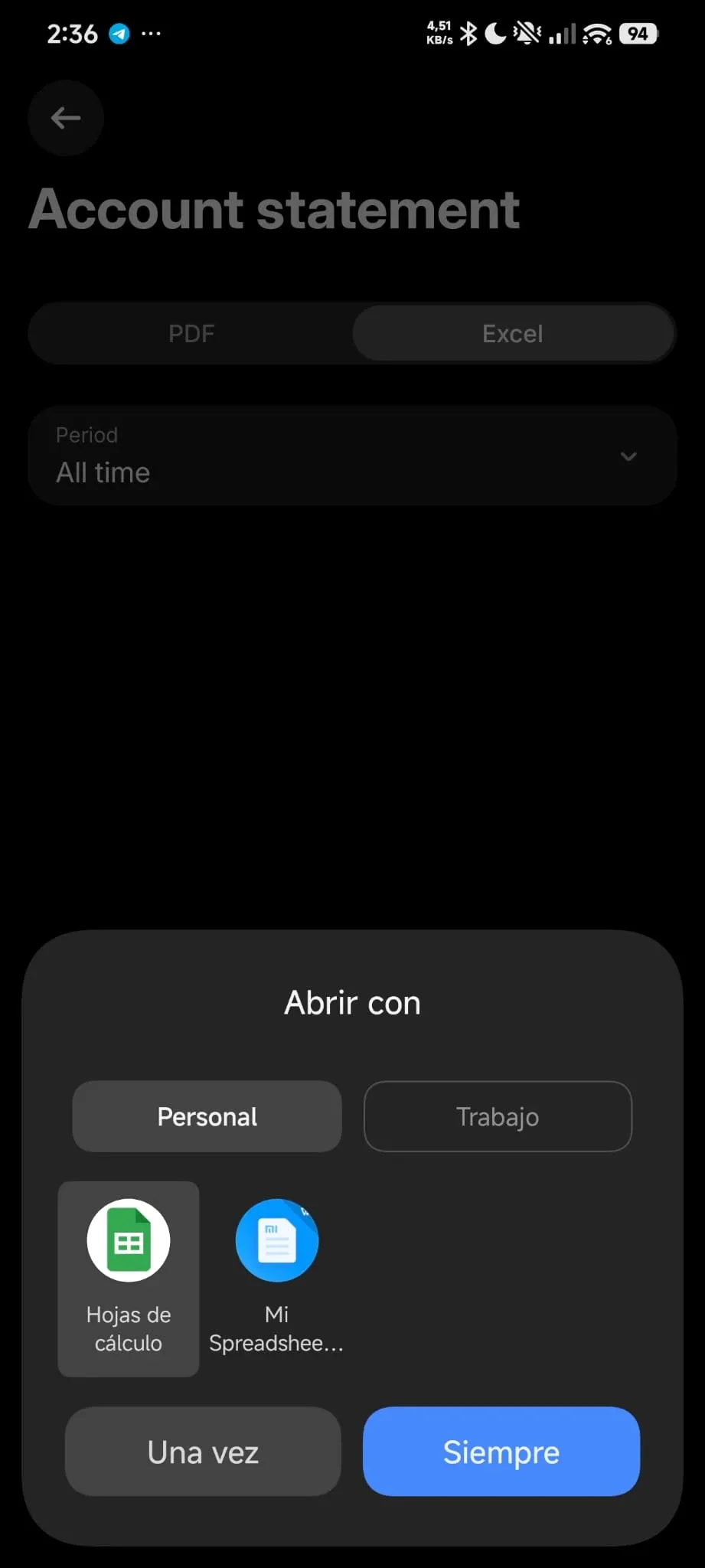
Step 11: open it with Google Sheets
- Find the Excel file you downloaded
- Open it ONLY with Google Sheets
- Do NOT use desktop Excel or any other application
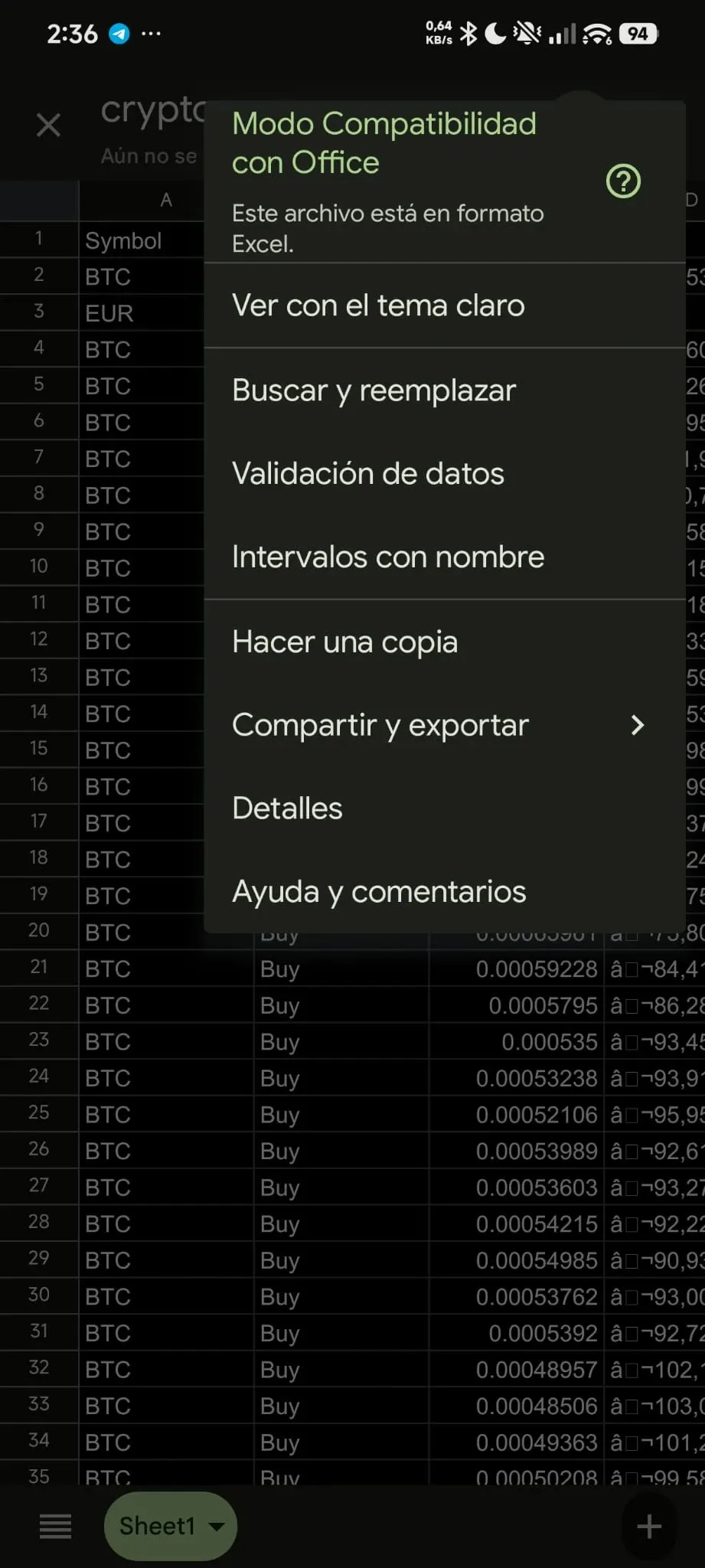
Step 12: Share & export
- With the file open in Google Sheets, tap the share button (three dots or the share icon)
- Choose “Share & export”
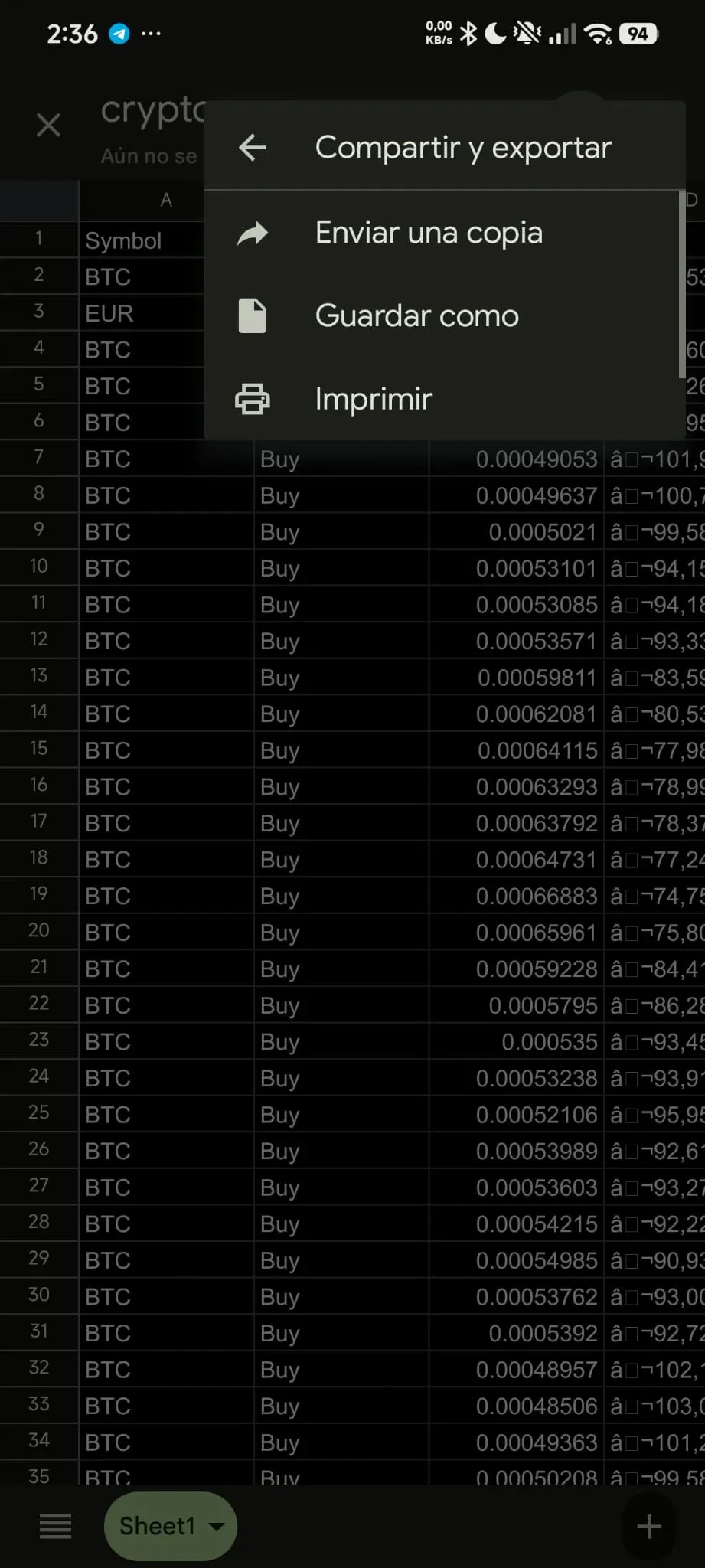
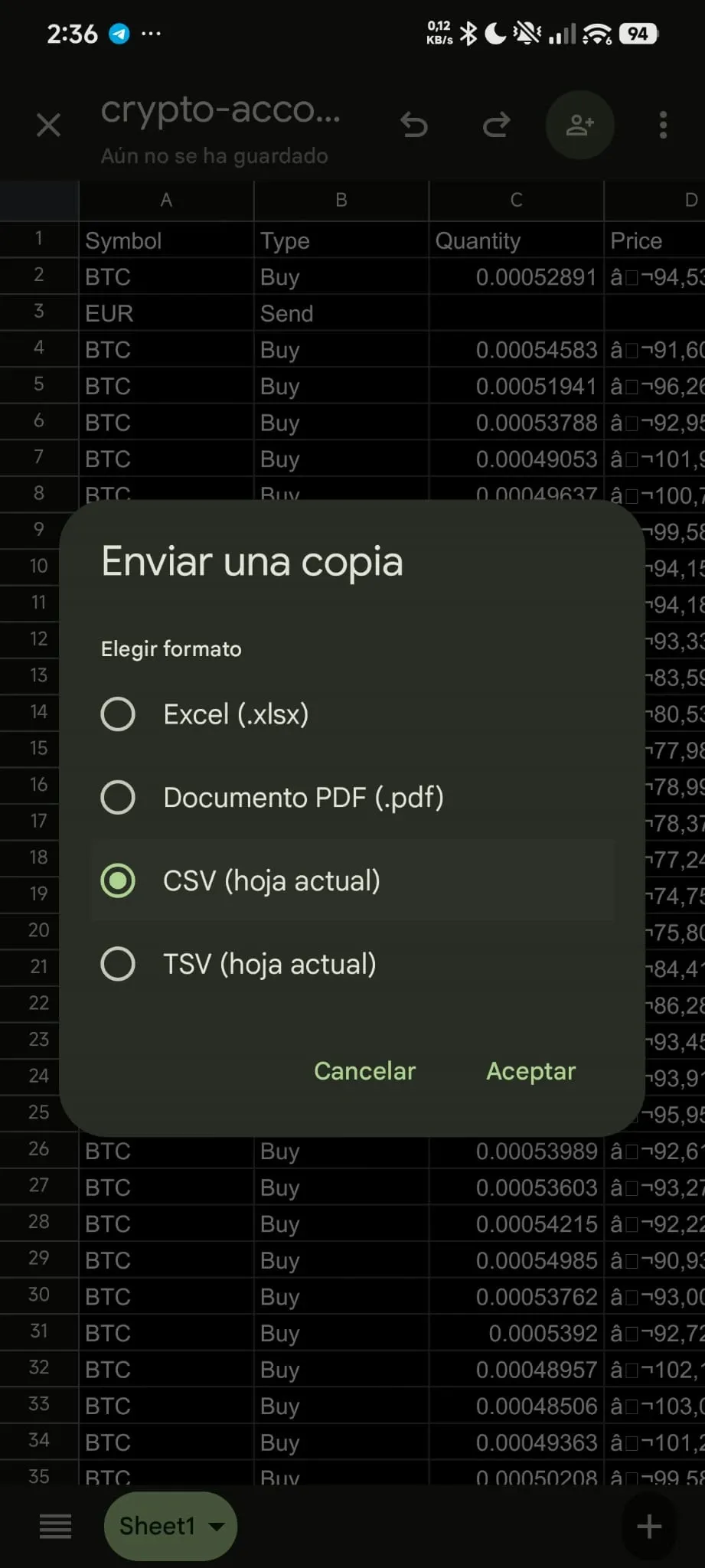
Step 13: Save as
- In the export menu, tap “Save as”
Step 14: export as CSV
- Choose the format “CSV (current sheet)” or “Comma-separated values (.csv)”
- The CSV file downloads to your device
Step 15: send us your CSV file
- Once the CSV has downloaded, upload it to your client area
- Our team will analyse it and prepare your complete tax report
Done. You now have your Revolut history as a CSV with English column names. Send it over and we take care of the rest.
What is inside the CSV file
The Revolut CSV includes these main columns (in English):
| Column | Description |
|---|---|
| Date | Date and time of the transaction |
| Type | Type: buy, sell, receive, send |
| Product | Cryptocurrency (BTC, ETH, etc.) |
| Amount | Quantity of crypto |
| Fiat Amount | Value in euros |
| Fee | Fee charged |
| Balance | Balance after the transaction |
Summary
| Step | Action |
|---|---|
| 1-4 | Switch language: Profile > Settings > Appearance > Language > English (United Kingdom) |
| 5 | Clear cache (Android): Settings > Apps > Revolut > Storage > Clear cache |
| 6-10 | Export: Profile > Documents and statements > Crypto > Account Statement > Excel + Lifetime |
| 11-14 | Convert to CSV: open ONLY in Google Sheets > Share & export > Save as CSV |
| 15 | Upload it: upload the CSV to your client area |
References

Víctor Lázaro
Tax adviser, colvence.com